Failed SSH Authentication Investigation
My server had been running for about a month with the SSH (TCP port 22), HTTP (TCP port 80), and HTTPS (TCP port 443) exposed to the internet. For a web server, ports 80/443 are simply the cost of doing business if you want your information available on the internet. I do in this case as it's a blog.
Exposing port 22 for SSH is a debatable (bad) practice. Using something like the web serial console access in Azure, an Azure Bastion host, or a custom cloud jump server is generally considered a better security option. This server is a basic blog with read-only content, should someone gain unauthorized access, it's not ideal but also not catastrophic. My data is backed up to my private GitHub repository and I could build a new cloud VM (with the malicious access vector removed/fixed). Most importantly, I'm not hosting sensitive customer information, financial data, etc. The only data theft would be the website content that's already publicly exposed, or worse case, an attacker gets remote control of the virtual private server (VPS). For this project that's a risk I'll have to accept.
With that being said, I looked at the status of the sshd service and had a moment of pause. Several [preauth] log messages.
sudo systemctl status ssh.service
This means someone/thing was attempting to authenticate to my SSH server. This isn't surprising considering it was internet exposed on the default SSH port. Still though, concerning.
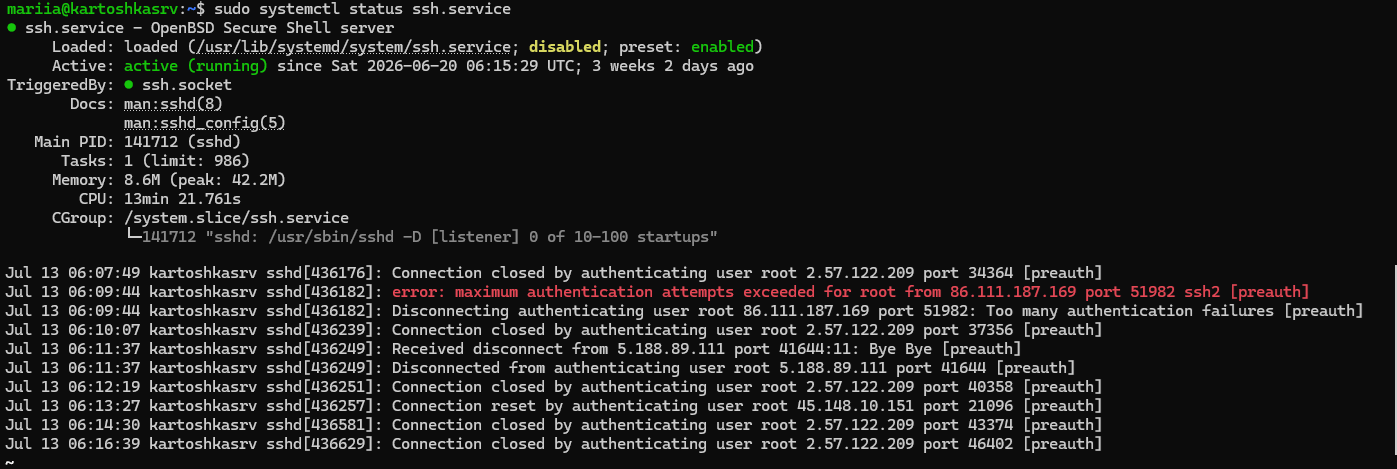 Failed SSH authentication attempts (click to enlarge).
I then looked into fail2ban status records for sshd. This showed that since fail2ban had been implemented, there have been 5817 failed login attempts to the SSH service. That's over about a 3-4-week period. Of those, 128 IPs hit the retry threshold of five attempts. However, all bans had timed out by exceeding the one-hour (3600-second) ban time due to zero results for Currently banned IPs.
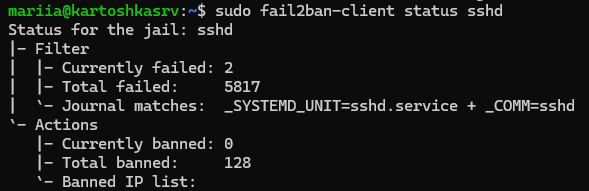 fail2ban sshd jail status.
I wanted to be sure there were no records of a successful login other than from the mariia account. This account only allows for public key authentication which means that if someone authenticated using it, they would have to have the private key file along with the random password that encrypts the key file. This can happen but given the value of my website, or the lack thereof, there is a low liklihood of someone targeting my system for credential theft. Fortunately the log records confirmed only the mariia account had successfully authenticated.
sudo journalctl -u ssh.service | grep "Accepted"
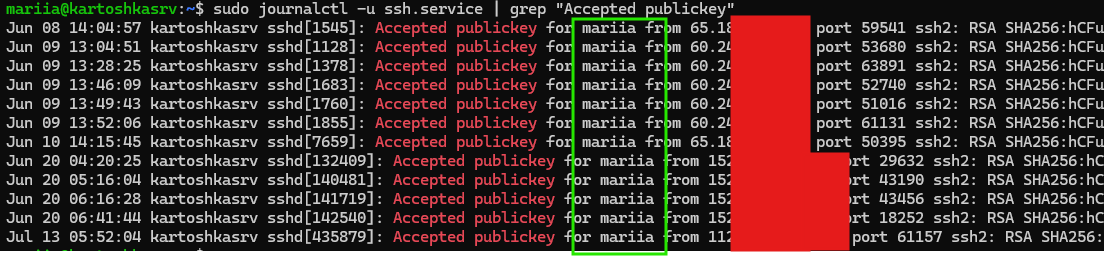 SSH authentication records.
From there I wanted to dive deeper on the HTTP log probing traffic. The Apache log for this is access.log. This log format is called the Combined Log format which comprises the Common Log format plus the addition of the HTTP Referrer and User-Agent fields. The Common Log format includes the requesting client IP address, date/time the request was made, the client request line (which includes the request HTTP method, resource, and protocol), the returned HTTP status code, and the number of bytes of the returned data. Anything that has a hyphen (-) output means the information was not available.
With the knowledge of the Apache Combined Log format in hand, I wanted to determine if there were excessive probes/scanners coming from any given IP(s) to my web server. I used the awk, sort, and uniq commands to count the number of per-IP entries to determine this.
awk '{print $1}' /var/log/apache2/access.log | sort | uniq -c | sort -rn | head
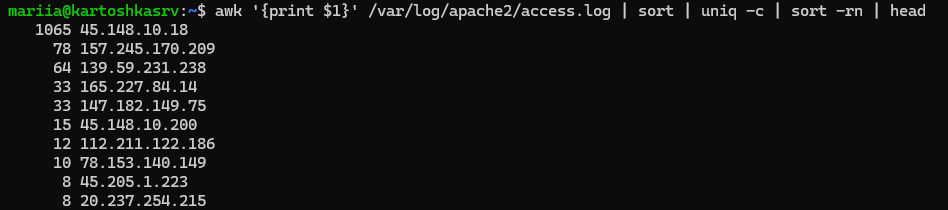 Count of HTTP queries per unique IP address.
The 45.148.10[.]18 IP has an order of magnitude higher number of log entries than any other IP. Looking at whois records shows it's based in the Netherlands. It's not possible to know, but that traffic could be originating from there or it could be proxied through the Netherlands. Main point being is that it's not from me (I'm in the Philippines).
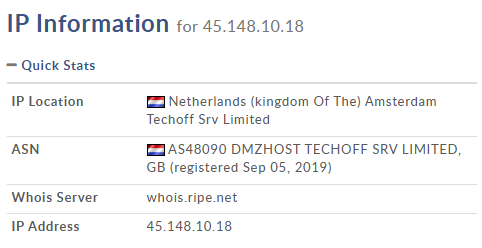 whois records for 45.148.10[.]18.
Focusing on that IP, we can check the type and count of each type of HTTP response status code(s) for those queries.
For that IP, I wanted to get an understanding/count of the HTTP response status codes of the 45.148.10[.]18 queries. There were three different status code results: 200 (OK), 400 (Bad Request), and 404 (Not Found).
grep '45.148.10[.]18' /var/log/apache2/access.log | awk '{print $9}' | sort | uniq -c
 HTTP response status code count for 45.148.10[.]18.
The 15 HTTP 200 responses are worth looking into further, as it means my web server successfully returned a response.
grep '45.148.10[.]18' /var/log/apache2/access.log | awk '$9 == 200 {print $0}'
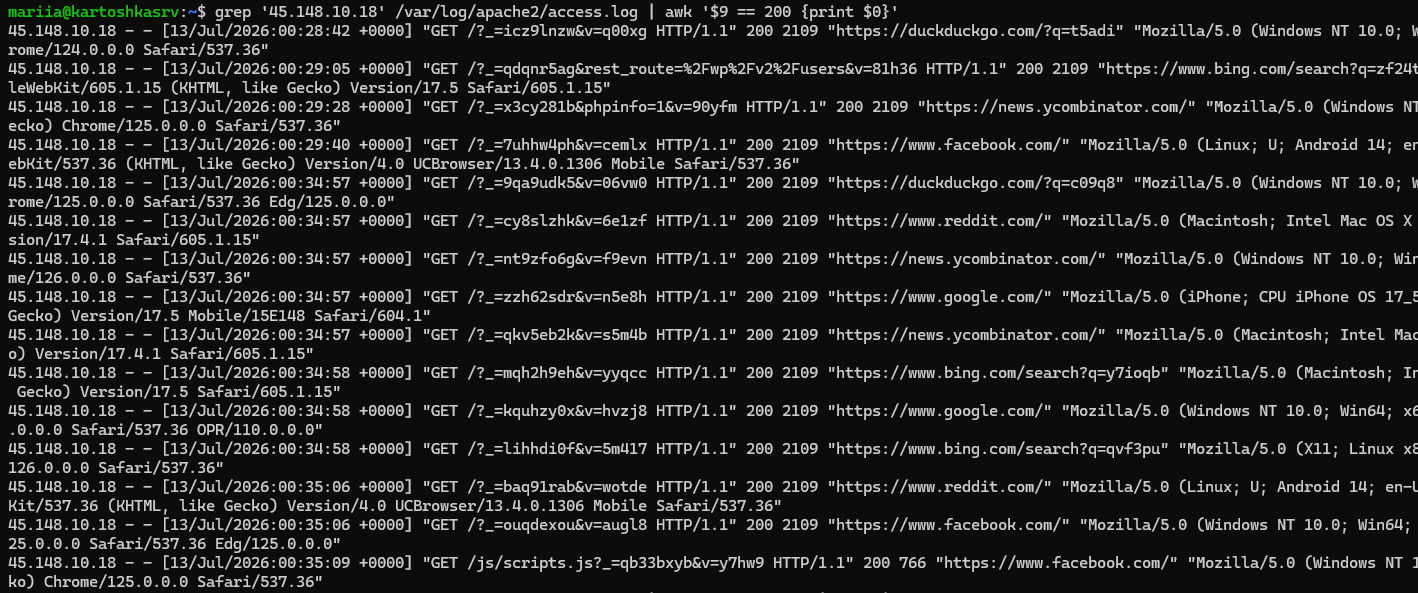 The HTTP 200 response log entries for 45.148.10[.]18 (click to enlarge).
Considering this traffic is all from the same IP, there are a few odd occurrences in the log data. Collectively this appears to be an attempt to spoof the site and make the connection attempts look unique even though it's all coming from the same source IP address.
First, a predefined list of Referrer fields are being rotated. This is the second to last field in the Combined Log format. All these domains are listed at least twice in the log data indicating a list is used to rotate the Referrer field.
- duckduckgo.com
- news.ycombinator.com
- www.bing.com
- www.facebook.com
- www.google.com
- www.reddit.com
The next is the variety of User-Agents in use. This is the last field in the Combined Log format. Some log data examples include:
Mozilla/5.0 (Macintosh; Intel Mac OS X 14_5) AppleWebKit/605.1.15 (KHTML, like Gecko) Version/17.5 Safari/605.1.15Mozilla/5.0 (Windows NT 10.0; Win64; x64) AppleWebKit/537.36 (KHTML, like Gecko) Chrome/124.0.0.0 Safari/537.36
The User-Agent typically identifies the browser in use. Having five different "browser" types from a single IP in ~7-minute period is very suspicious. This includes connectivity from:
- Android (
Linux; U; Android 14; en-US; Redmi Note 13 Pro Build/UP1A.231005.007) - iPhone (
iPhone; CPU iPhone OS 17_5_1 like Mac OS X) - Windows (
Windows NT 10.0; Win64; x64) - Mac (
Macintosh; Intel Mac OS X 14_5) - Linux (
X11; Linux x86_64)
The last component, and I needed Claude's help for this one, were the random underscore (_) parameters in each GET request. This is referred to as cache-busting to ensure each request is viewed by the server as unique. The result is the page data is resent and not served cache. For more complex web sites I guess this would make a difference but that's not the case here.
GET /?_=cy8slzhk&v=6e1zf HTTP/1.1GET /?_=nt9zfo6g&v=f9evn HTTP/1.1GET /?_=qkv5eb2k&v=s5m4b HTTP/1.1
Two of the HTTP 200 OK responses warranted a little more attention. One appeared to be doing some type of WordPress probing (/?_=qdqnr5ag&rest_route=%2Fwp%2Fv2%2Fusers&v=81h36). Since I'm not running a WordPress site, this wasn't a concern. The other was the attempt to test the PHP function phpinfo by sending phpinfo()(/?_=x3cy281b&phpinfo=1&v=90yfm). I confirmed this only returned the default homepage view and not PHP version information or otherwise. This is the result of the PHP hardening configuration I took while setting up the server.
 Testing the data returned by requesting phpinfo=1.
Based on this analysis I'm confident there was no unauthorized SSH access to my VM.
Default SSH Port Change
When I was building and hardening my web server one change I mentioned, but didn't implement, was a security through obscurity option of changing the default SSH port from 22 to something non-standard. This is done to attempt to reduce the amount of attack noise on the SSH service. It doesn't change that SSH is still exposed to the internet and accessible. Just that an attacker, bots, etc. will have to take slightly more effort to discover the service. This is another small defensive tactic that is part of the other hardening actions implemented like disabling password and root authentication, only allowing certificate authentication, and implementing fail2ban.
The non-standard post I'll switch to is 19860. In my Azure VM's Network setting click Create port rule > Inbound port rule to add this rule.
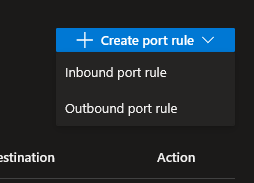 Adding an Azure VM inbound port rule.
Ideally while creating the rule there is a specific IP or subnet range you can add as the source to limit where acceptable traffic can originate from. However, I don't have a static management IP for this and will keep it set to ANY.
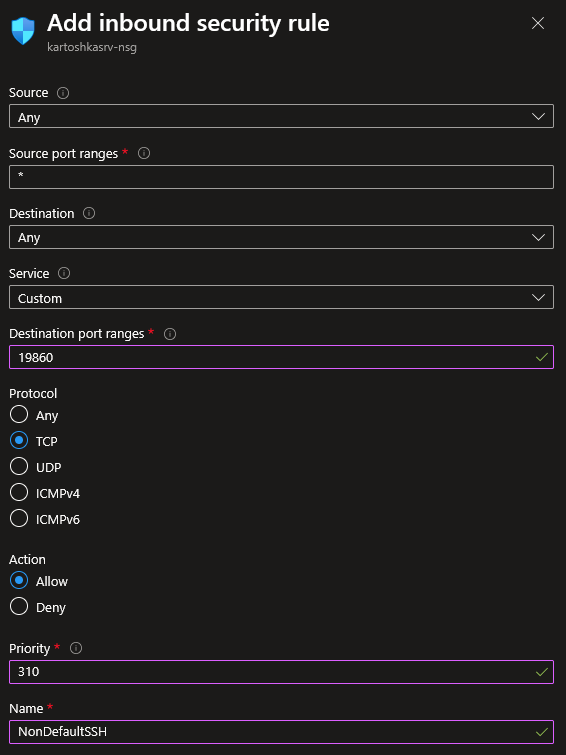 Creating the new inbound security rule for port 19860.
This confirms the new inbound rule for TCP port 19860, called NonDefaultSSH, has been added.
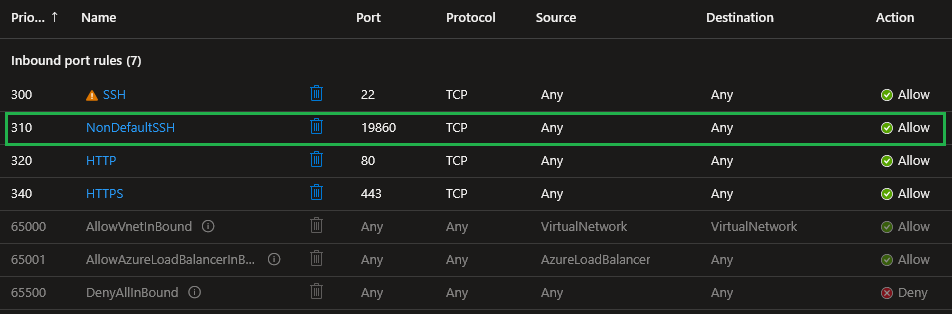 New inbound rule for port 19860 confirmation.
Now that this rule is added, the inbound port rule for TCP 22 can be removed.
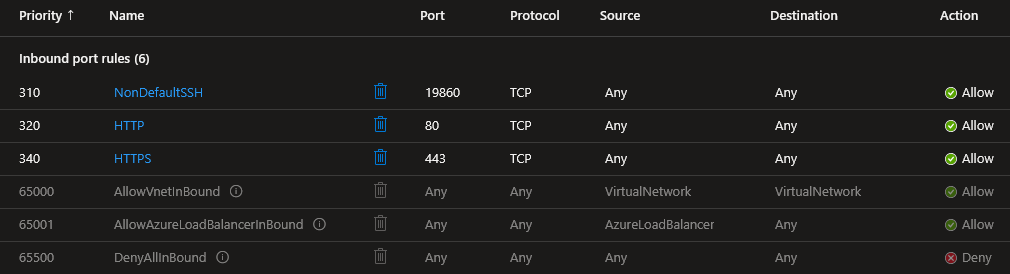 Removing the inbound port rule for 22.
After implementing this change in Azure, I had to do the same thing for the Ubuntu server VM sshd config. It turns out this is slightly more complicated than modifying the /etc/ssh/sshd_config file and restarting the sshd service. It uses systemd socket activation where port setting changes in the sshd_config file require additional commands for the socket binding changes to take effect. It specifically says:
When systemd socket activation is used (the default), the socket configuration must be re-generated after changing Port, AddressFamily, or ListenAddress. For changes to take effect, run:
                            systemctl daemon-reload

                            systemctl restart ssh.socket
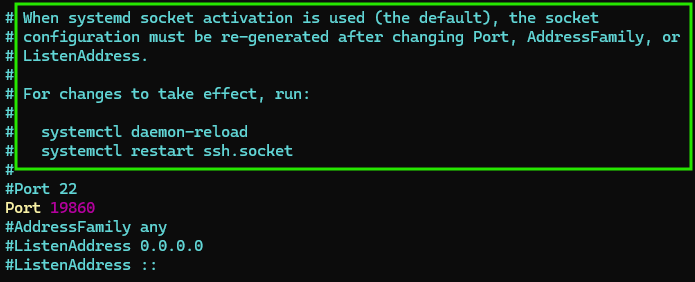 systemd socket activation instructions.
The configuration change/addition can be viewed as well with the systemctl cat ssh.socket command.
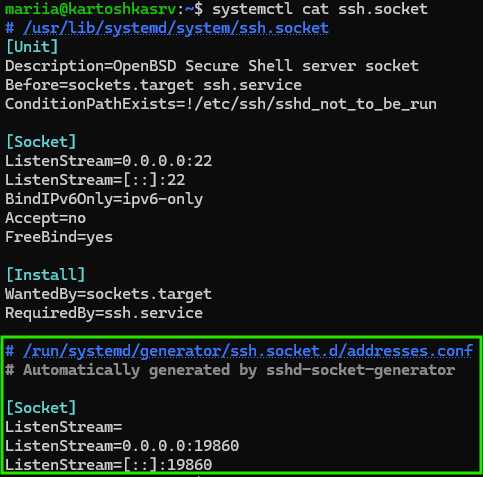
From what I understand the configuration settings under the [Socket] section in the ssh.socket file are overwritten with the new settings in the [Socket] section of the addresses.conf file. The ListenStream= line clears all the settings. Then IPv4 is set with ListenStream=0.0.0.0:19860 and IPv6 with ListenStream=[::]:19860.
The results of these changes can be confirmed by looking at the ssh.socket service status. It is listening for both IPv4 (0.0.0.0:19860) and IPv6 ([::]:19860).
systemctl status ssh.socket
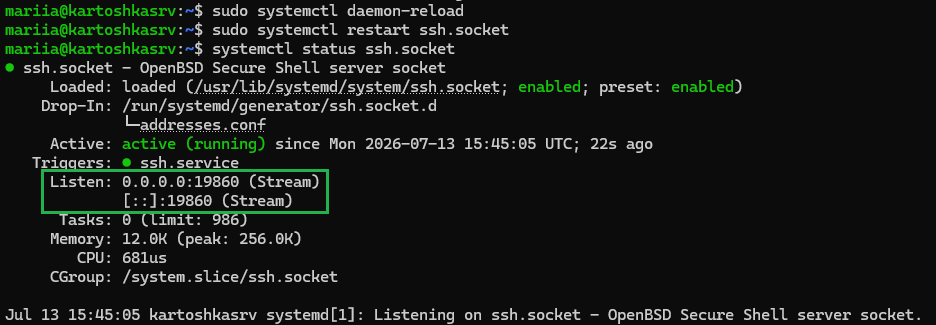 ssh.socket server listening status.
Also for good measure we can confirm the listening ports with ss.
sudo ss -tlnp | grep sshd
 ss listening ports 19860 for sshd.
This port change also needs to be reflected in the fail2ban configuration.
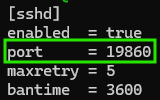 fail2ban configuration change for port 19860.
Once the change is made the configuration can be tested to ensure there are no errors and then the service must be restarted.
                            sudo fail2ban-client -t

                            sudo systemctl restart fail2ban
 fail2ban test and service restart.
Enabling the ufw Firewall
This may be unnecessary due to the network filtering in Azure, but as another layer of defense I'll add is the Ubuntu ufw firewall. To ensure I don't lock myself out I'm first going to add rules to allow HTTP, HTTPS, and TCP port 19860. I'll then confirm and finally activate the firewall.
                            sudo ufw allow http

                            sudo ufw allow https

                            sudo ufw allow 19860/tcp

                            sudo ufw show added

                            sudo ufw status verbose

                            sudo ufw enable
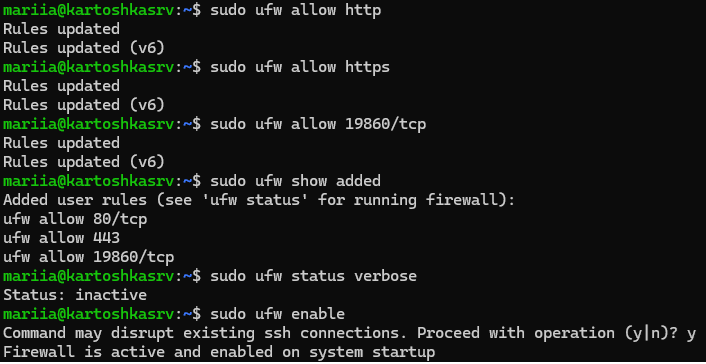 ufw rule addition, confirmation, and activation.
This added IPv6 rules as well, but I'm not using or allowing IPv6 so they will be removed.
                            sudo ufw status numbered

                            sudo ufw delete 6 -> y

                            sudo ufw delete 5 -> y

                            sudo ufw delete 4 -> y
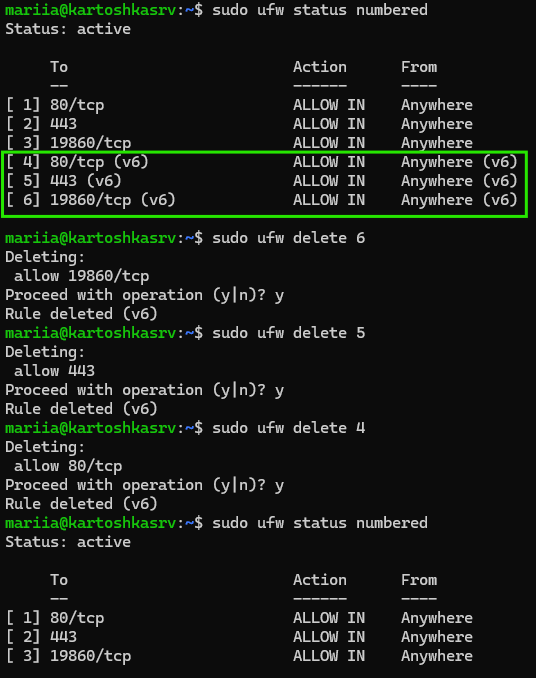 Removing the ufw IPv6 allow rules for ports 80, 443, and 19860.
Lastly for ufw I'm going to explicitly block the problem 45.148.10[.]18 IP from earlier. This can be an endless whack-a-mole game but I'll try it for now.
                            sudo ufw deny from 45.148.10.18

                            sudo ufw status
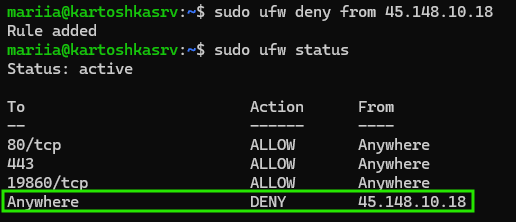 Blocking the 45.148.10[.]18 IP in ufw.
Additional fail2ban Hardening and Adding Apache Jails
I want to add a few more fail2ban hardening options based on the SSH and HTTP probing seen earlier. For sshd, there are three configuration changes. One is to increase the bantime from 1 to 2 hours. The second is to enable the bantime.increment option. This progressively bans repeat offenders for longer times. I also am going to set the mode to aggressive (from the default of normal). Aggressive combines all patterns from the normal, ddos, and extra modes. Normal only matches things like a bad password or invalid user, ddos adds detection for connection style floods (i.e., many connection attempts without authentication), and extra adds some additional patterns including pre-authentication disconnects. After doing this the config is tested and then the service restarted.
                            sudo fail2ban-client -t

                            sudo systemctl restart fail2ban
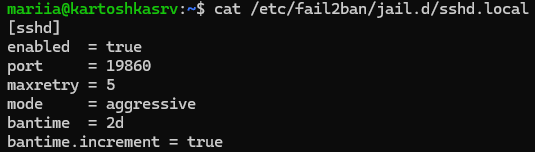 fail2ban sshd jail configuration updates.
I also added some Apache based jails in an apache.local file. apache-badbots catches known bad User-Agent strings in the Apache Access Combined Log, apache-noscript blocks based on nonexistent script file types (e.g., .php, .asp, .pl, .cgi, etc.), and apache-overflows looks for excessively long URLs or headers that may attempt to trigger buffer overflows or to test how the server handles oversized input. The new config is tested again and then the service restarted.
                        sudo fail2ban-client -t

                        sudo systemctl restart fail2ban
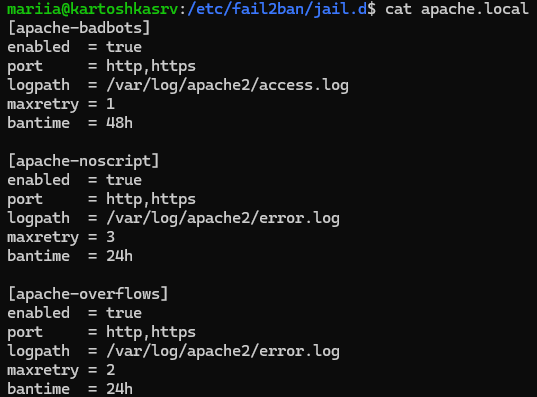 Addition of the fail2ban Appache jails.
A while back in one of the screenshots there was a warning message when running the sudo fail2ban-client -t command.
WARNING 'allowipv6' not defined in 'Definition'. Using default one: 'auto'
It's not a huge deal but I think better to be explicit when possible with configuration settings. Plus it's best to remove all IPv6 capability as was done with the ufw firewall rules. Another .local file was created in /etc/fail2ban/fail2ban.local. This is required as the equivalent .conf file could be overwritten with future fail2ban updates.
 Disabling IPv6 in fail2ban.
Disabling SSH IPv6
Disabling SSH IPv6 capabilities requires editing the /etc/ssh/sshd_config file. The AddressFamily config line must be uncommented and set to inet. This is the setting for an IPv4 socket only.
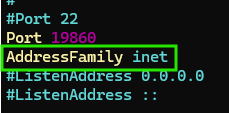 Disabling SSH IPv6.
As before, the ssh.socket configuration is regenerated with the systemctl daemon-reload command. Viewing it with systemctl cat ssh.socket shows only the IPv4 configuration parameter ListenStream=0.0.0.0:19860 (and the IPv6 portion is gone ListenStream=[::]:19860).
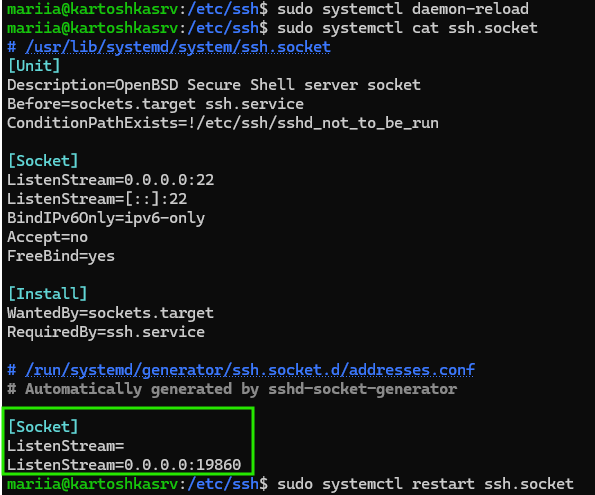 ssh.socket updated configuration.
Confirming the change is active using systemctl status ssh.socket and also with ss -tlnp | grep sshd.
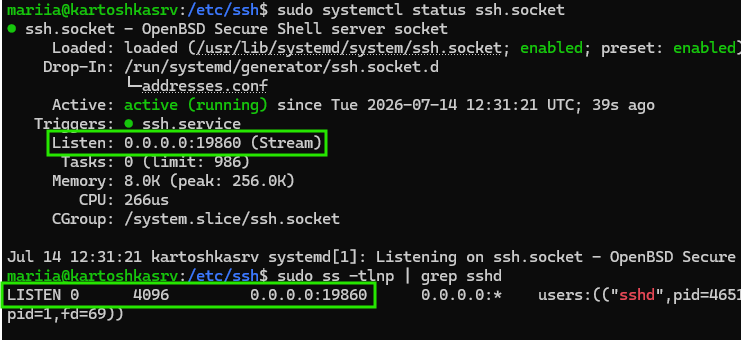 SSH listening only on an IPv4 socket.